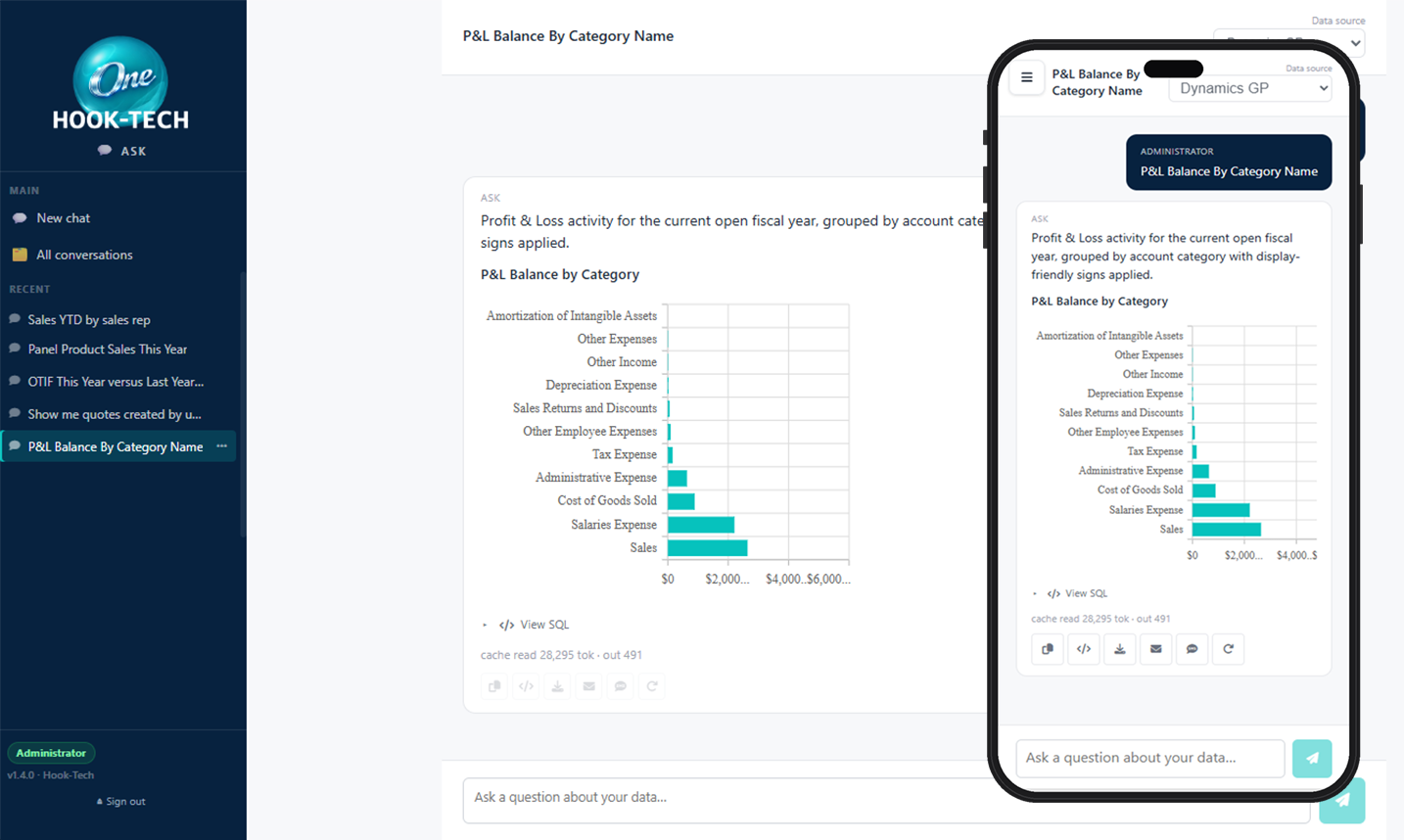
From plain-English question to a chart or table, in seconds.
Follow a real example — a Top 10 Products YTD question — from typing it in, to sending the answer to a coworker, to scheduling it as a recurring reminder or turning it into a threshold alert.
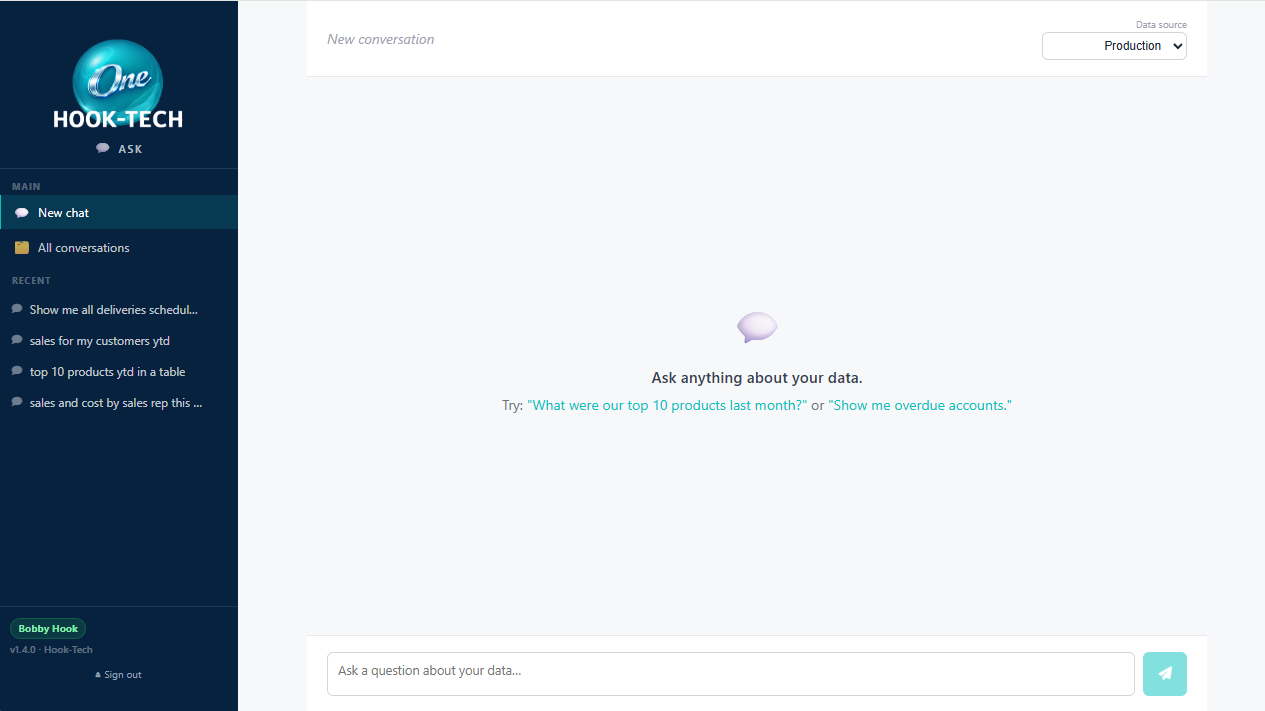
Type your question the way you'd say it.
Open Ask and you land on a chat interface. Click New Chat, pick a connection if you have access to more than one, then type. "Top 10 products by sales YTD". "Which customers haven't ordered in 60 days?". Anything you'd normally ask by walking over to someone's desk.
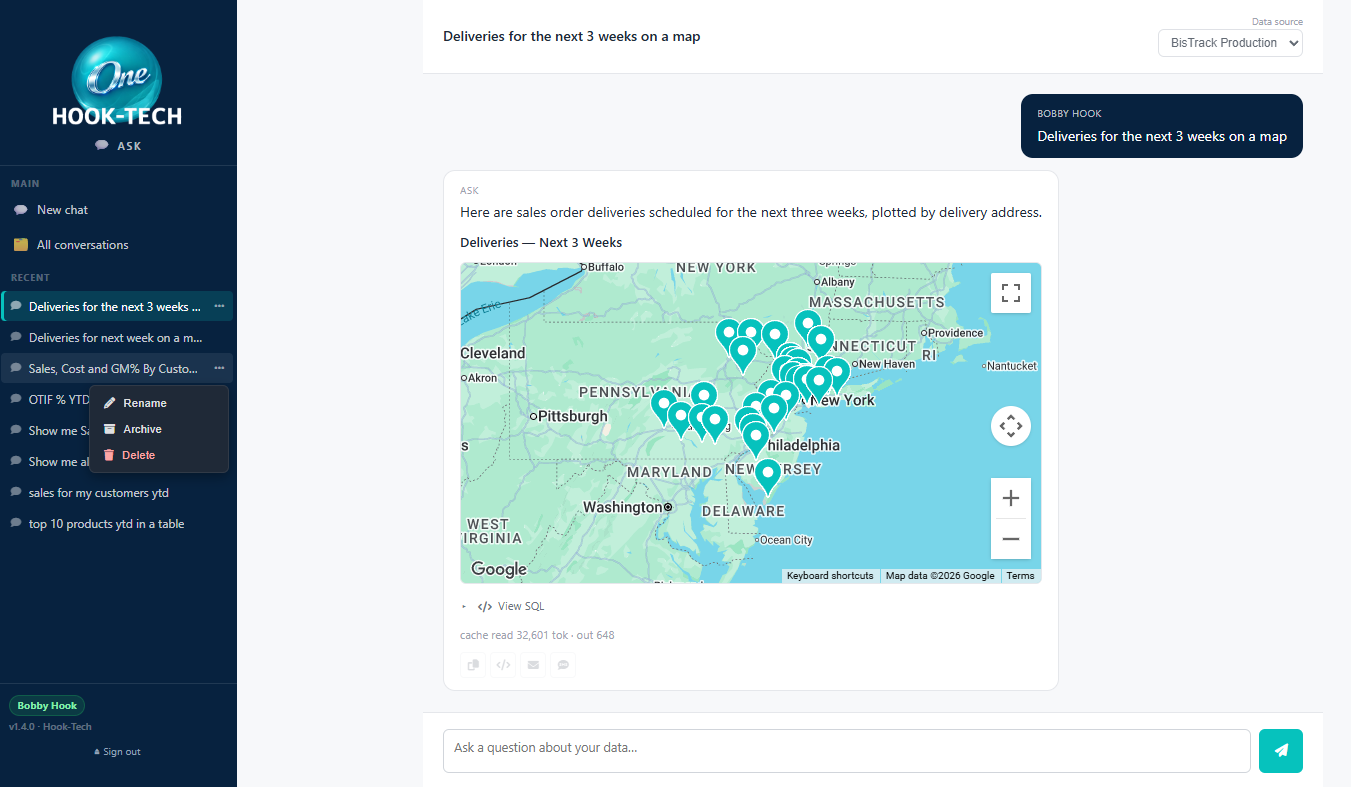
The sidebar keeps every conversation you've had so you can pick up where you left off. Rename, archive, or delete from a small menu on each row.
Grounded in your AI Schema, not a guess.
Ask sends your question together with the AI Schema you set up in Hook-Tech One — table descriptions, column meanings, business rules, worked examples. That's what keeps the generated SQL grounded in your real data instead of a plausible-sounding hallucination.
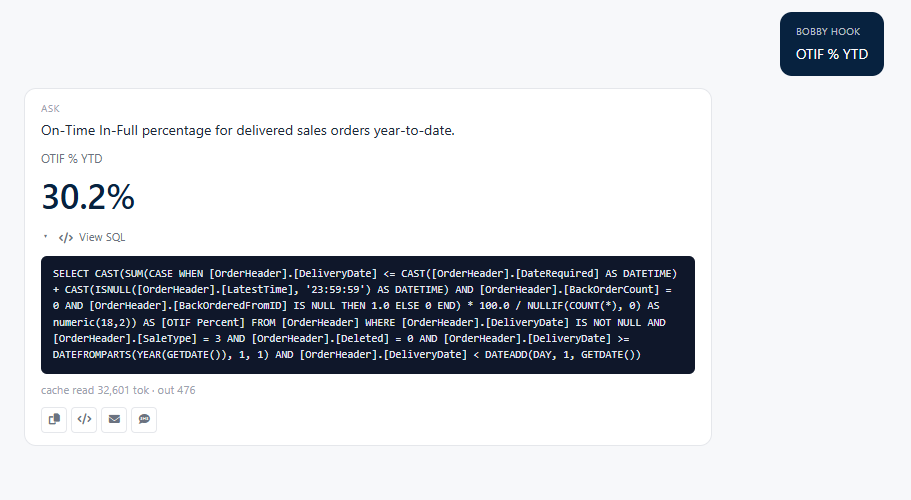
The AI comes back with a SQL statement and a suggested component type (chart, grid, KPI, map, gauge, or text). Ask runs the SQL, renders the result, and shows the full query in a collapsible Show SQL panel under the answer so you can inspect exactly what it did.
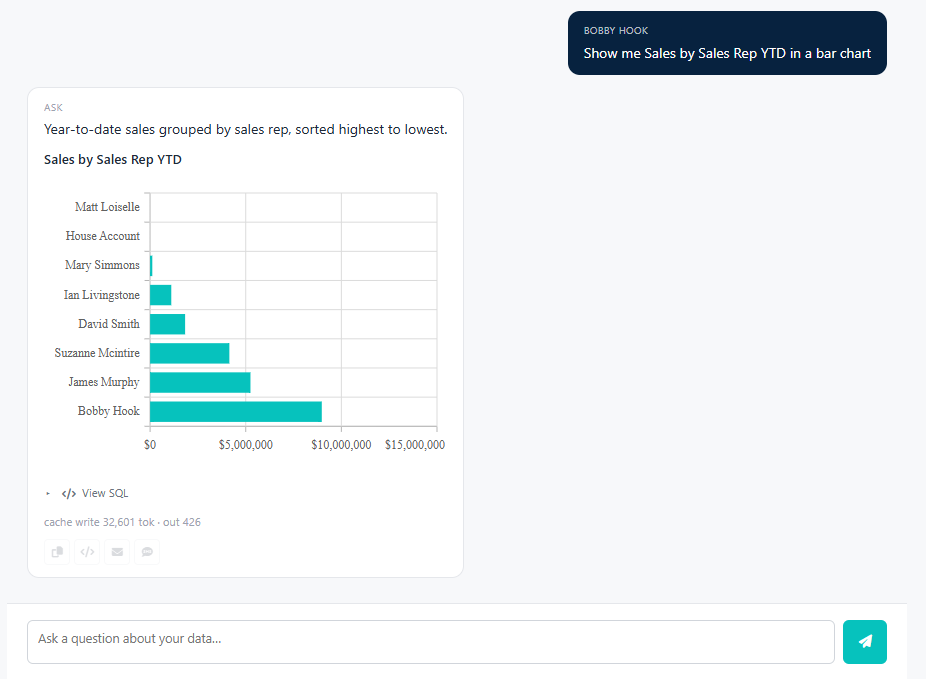
Chart, grid, KPI, map, gauge, or text — whichever fits.
Ask picks the component type that best matches the shape of the result. Trend over time gets a line or bar chart. A list of records gets a sortable, filterable grid. A single number gets a KPI tile. Rows with latitude / longitude become a map. Progress-toward-target becomes a gauge. Simple yes/no answers come back as text.
Don't like the shape? Ask a follow-up — "show that as a chart", "give me the underlying rows" — and Ask regenerates the answer.
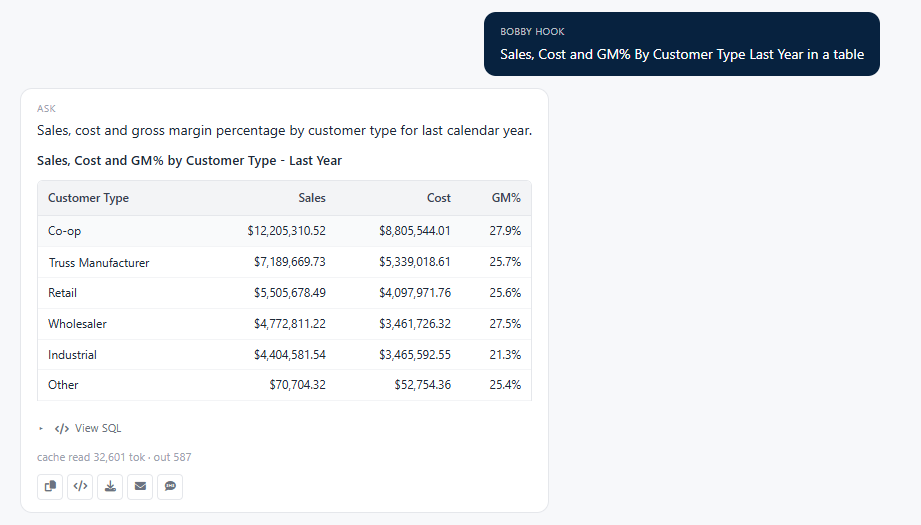
Tabular answers come back as a clean, formatted table.
When the shape of the question calls for it, Ask renders the answer as a data table with column headers, per-column formatting (currency, percent, number, date), and the rows the SQL returned. It's a read-only view aimed at answering the question at hand — not a designer-built grid you'd browse for a week.
If you need the interactive treatment — sorting, grouping, filtering, drilling into a data card — export to Excel from the action bar underneath, or ask a follow-up to narrow the result set. For the full designer-built grid experience, that's what Hook-Tech Grid is for.
Come back to where you left off.
The sidebar lists your recent conversations, newest first. Click one to reopen it — Ask remembers the whole thread including the SQL, the answers, and the AI's reasoning, so a follow-up like "and by branch?" makes sense in context.
A retention setting keeps conversations for the number of days you choose (90 by default). Set it to zero if you'd rather keep every conversation forever. A daily background job handles the cleanup automatically.
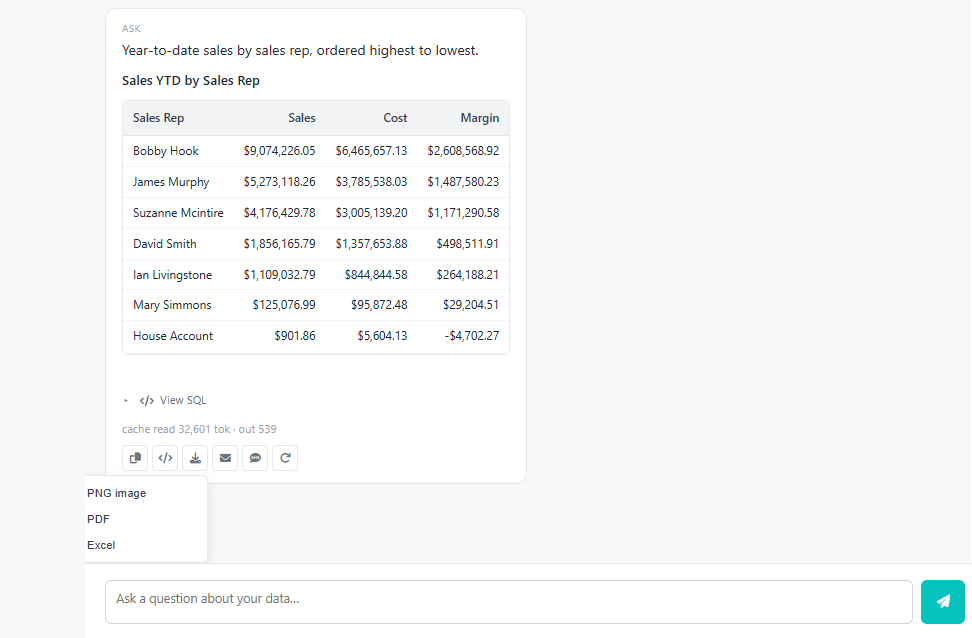
Export as PNG, PDF, or Excel.
Under every answer, an action bar gives you three export buttons. PNG saves a picture of the component. PDF saves a printable version — auto-landscape for wide charts and grids, portrait for KPI and text. Excel saves the underlying rows as a proper .xlsx with typed columns.
Everything runs off the same query Ask already made — no second round-trip to the AI, no risk of the numbers drifting between what you saw and what you exported.
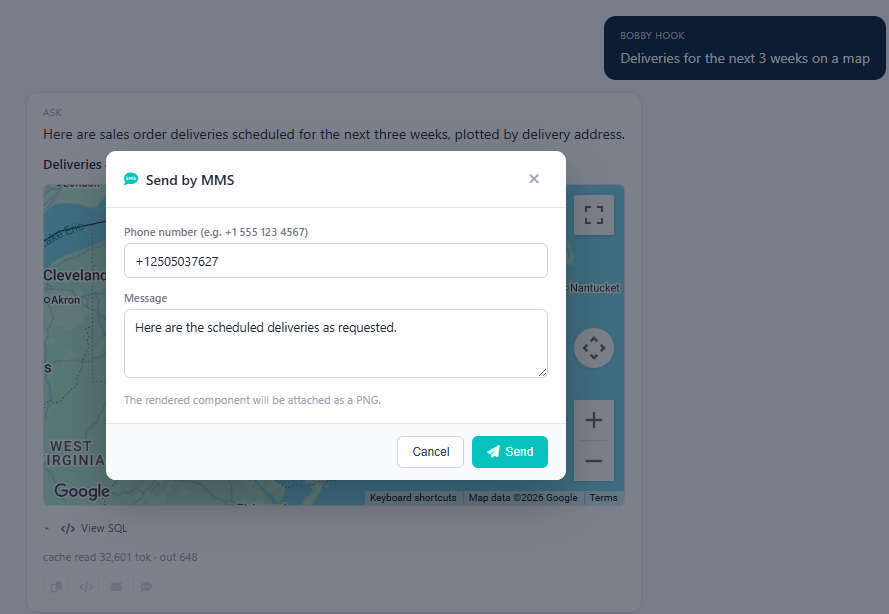
Email or text the answer, straight from the chat.
Three more buttons in the action bar hand the answer off to Messenger for delivery. Email opens a small form for recipient, subject, and message — the chart, KPI, or data table renders straight into the email body, no PDF attachment needed. SMS takes a phone number and sends a text summary; MMS does the same and attaches a picture of the answer as the media.
Delivery uses whichever email and SMS accounts your Messenger install already has configured — nothing to set up in Ask itself. The message drops straight into Messenger's queue and typically ships within a few seconds.
Get the same answer every morning, without asking again.
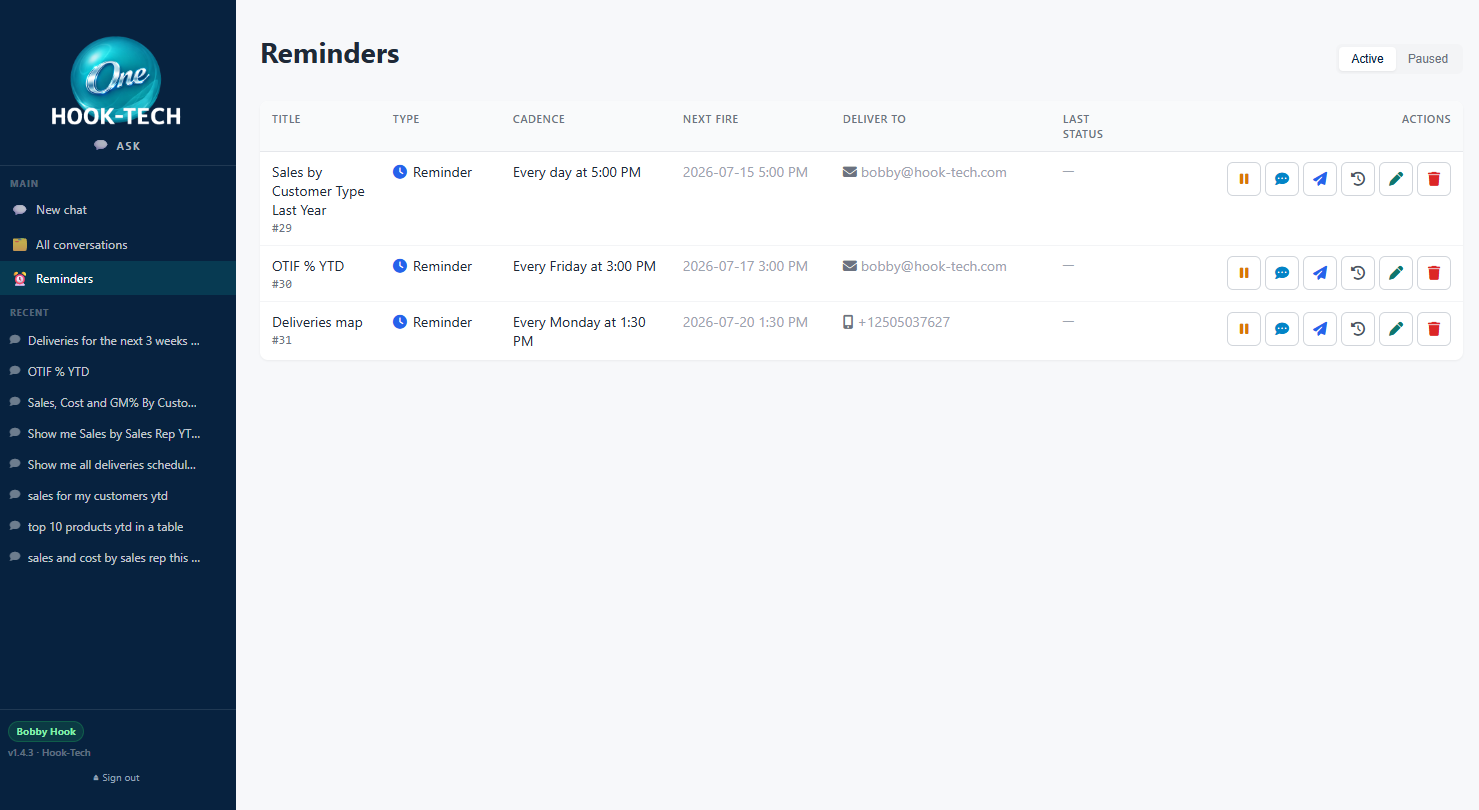
Ask a question, get the answer, then say "remind me every Monday at 9am" or "send me this every morning at 8am" in the same conversation. Ask reads the intent, proposes the reminder in a confirmation card, and once you click Create it re-runs the query on that schedule and delivers a fresh copy by Email, SMS, or MMS — with the chart rendered right into the message.
Reminders live on their own Reminders page. Each row shows the next-fire time, the delivery channel, and the outcome of the last run. Pause, resume, send-now, view fire history, edit, or delete without leaving the page.
Only tell me when it crosses the line.
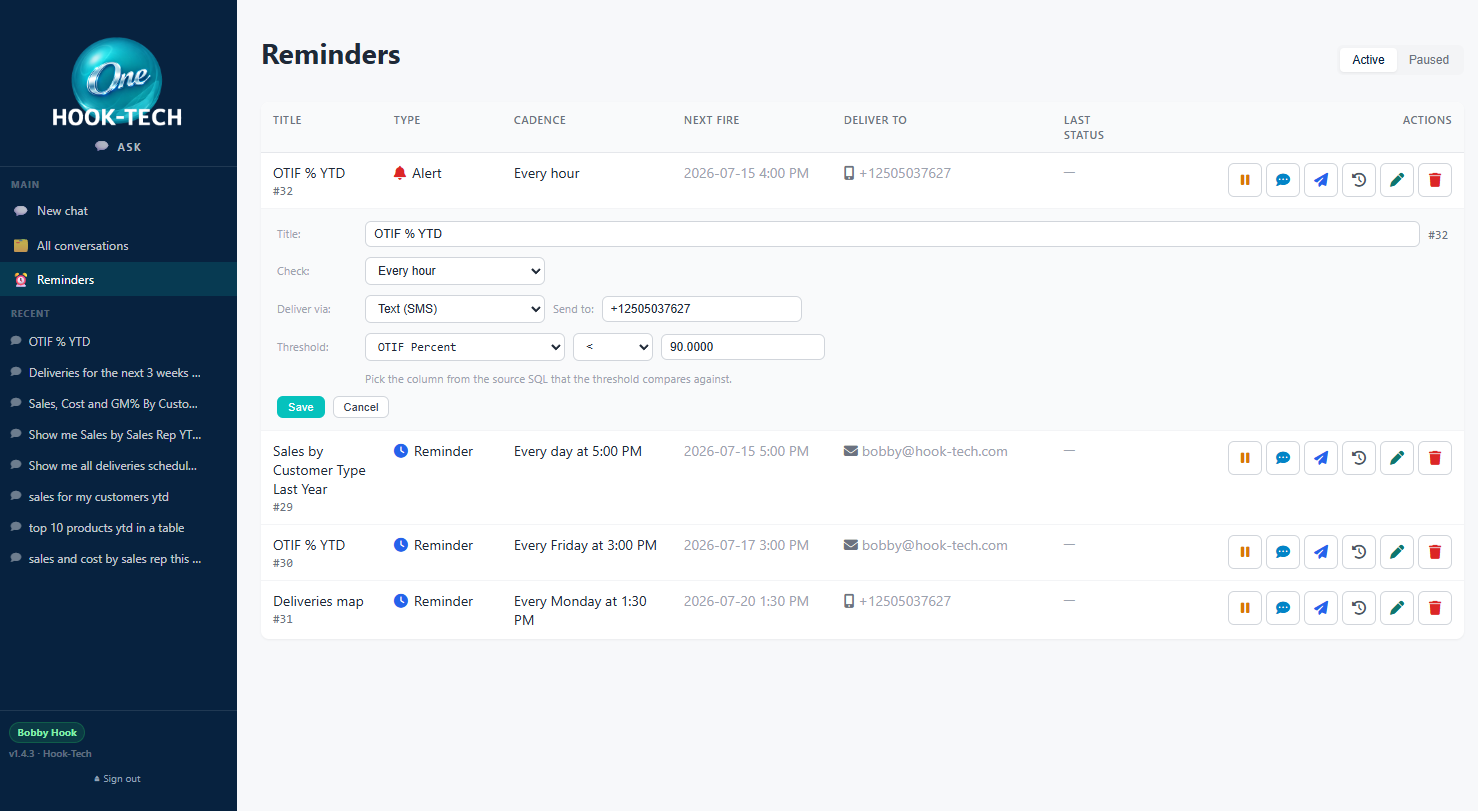
An alert is a reminder with a threshold. Pick a column from the answer, pick an operator (>, <, =, and friends), enter a value — then let Ask watch. The alert stays quiet until the observed value matches, so your inbox doesn't fill with noise.
Overdue invoices, low stock, OTIF percentage below 90, AR balance above your comfort line — whatever your leading indicator is, Ask can be the thing keeping an eye on it. Every evaluation is recorded so you can see the trend even when the alert didn't fire.
The whole chat is mobile-first.
Ask was designed for a phone in one hand from day one. The sidebar collapses into a hamburger overlay. The input pins to the bottom of the viewport respecting iOS home-indicator safe area. Text inputs never trigger the iOS zoom-on-focus quirk. Every answer type — chart, grid, KPI, map, gauge — renders sensibly at a narrow width.
And Ask appears on the Hook-Tech One mobile chooser at /m alongside Vision-AI, Grid, and Labeler, so it's one tap from the mobile home screen.